
Mozilla Firefox 153 and later
Instructions for all systems · updated 10 Aug 2026
Fastest fix
CtrlShiftR
Hard refresh — reloads this page and ignores the saved copy.
Firefox calls its cached copies “temporary cached files and pages”. A hard reload ignores them for the current page; clearing them removes them for every site.
Clear cached files
- Press
Mod+Shift+Deleteto open Clear browsing data and cookies. The menu route is ≡ → Settings → Privacy & Security → Cookies and Site Data → Clear Browsing Data.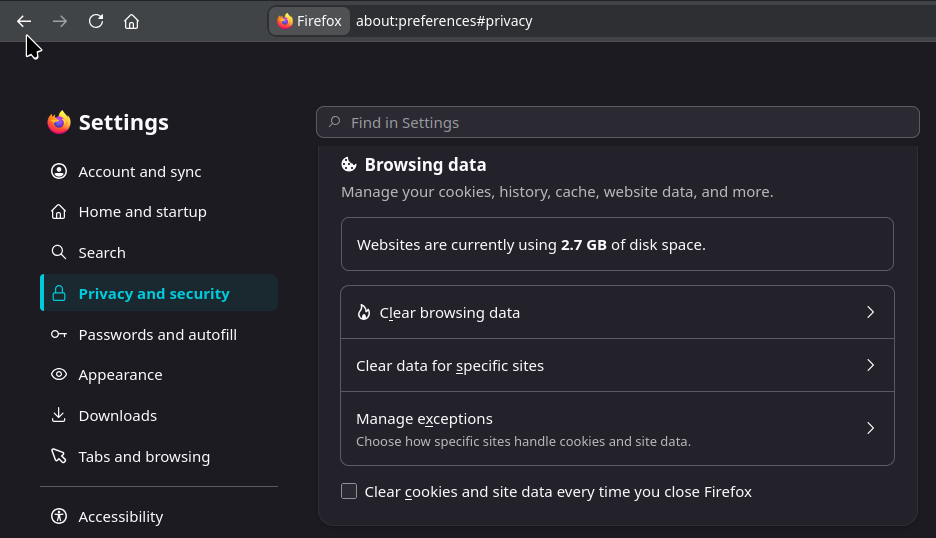
- Set When to Everything.
- Tick Temporary cached files and pages. Leave Cookies and site data unticked unless you want to be signed out of your websites.
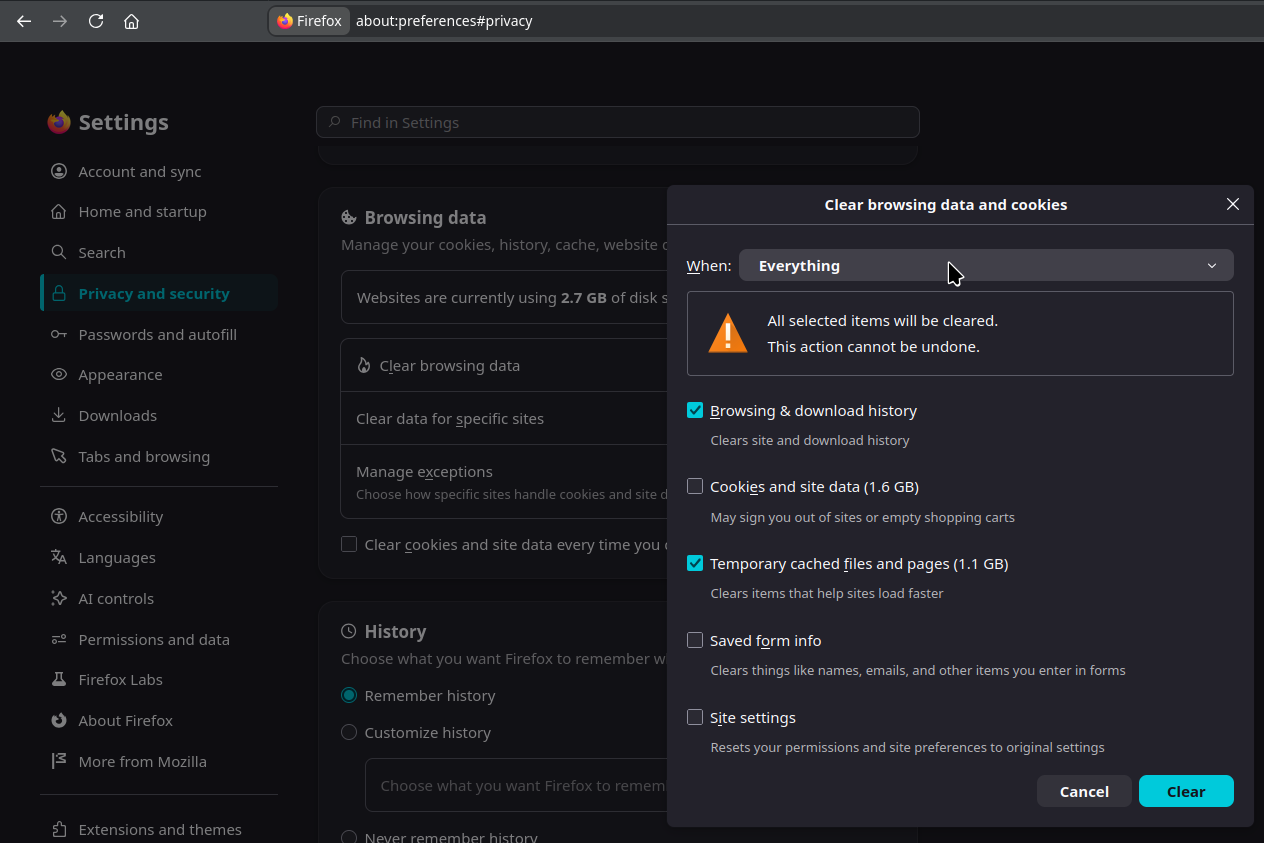
- Click Clear and confirm.
Stop Firefox caching while you work
- Press
F12to open the developer tools. - Open the Network tab and tick Disable Cache. It stays off while the tools are open.
To clear data for a single site, open Settings → Privacy & Security → Cookies and Site Data → Manage Data, search for the site, and remove it.