
Opera 133 and later
Instructions for Windows · updated 12 Aug 2026
Fastest fix
CtrlShiftR
Hard refresh — reloads this page and ignores the saved copy.
Opera is Chromium-based, so the cache controls are familiar — but the cache option sits on the Advanced tab rather than the basic one.
Clear cached files
- Press
Mod+Shift+Delete, or open Settings → Privacy & security → Clear browsing data.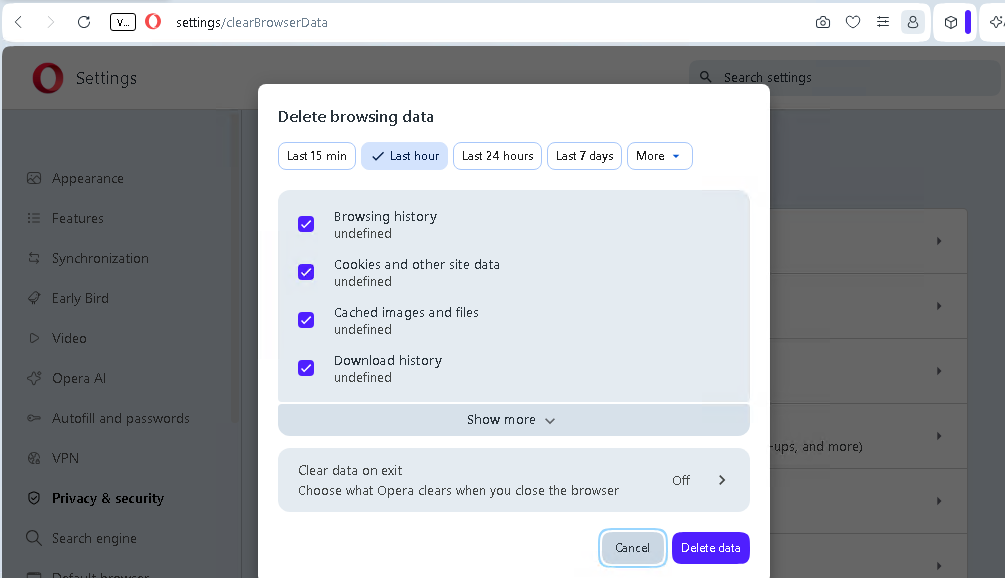
- Set Time range to All time.
- Tick Cached images and files and untick anything you want to keep.
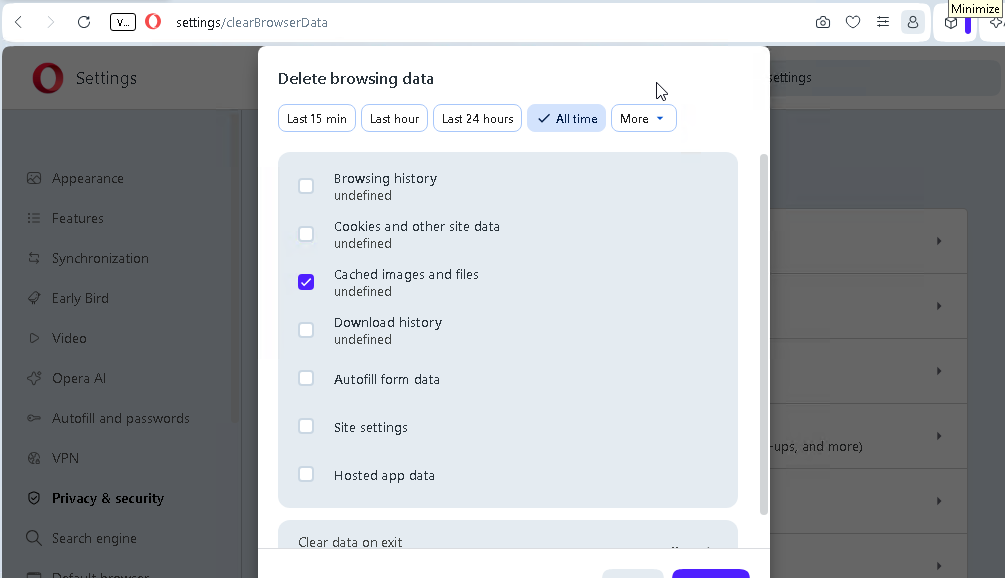
- Click Clear data.
If a page still looks wrong afterwards, check whether Opera’s built-in ad blocker or VPN is interfering — both can change what a page loads.