
Google Chrome 151 and later
Instructions for Linux · updated 10 Aug 2026
Fastest fix
CtrlShiftR
Hard refresh — reloads this page and ignores the saved copy.
A hard reload fixes most stale-page problems: it makes Chrome re-download everything on the page instead of reusing its saved copies. If that isn’t enough, delete Chrome’s cached files entirely.
Delete cached files
- Click the three-dot menu (⋮) at the top right of the window.
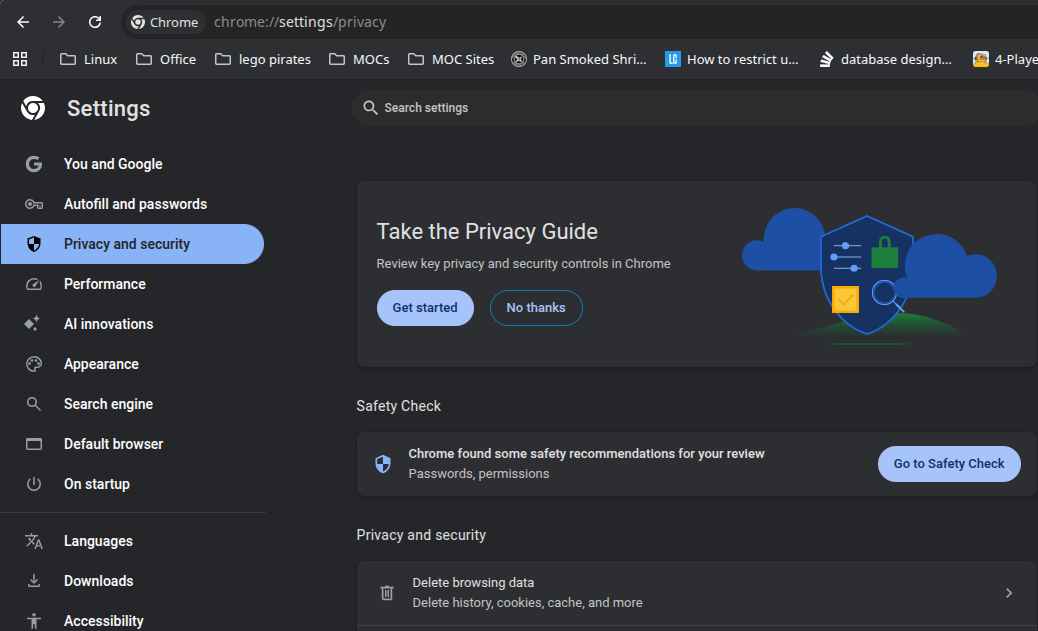
- Choose Delete browsing data. You can jump straight there with
Mod+Shift+Delete, or by pastingchrome://settings/clearBrowserDatainto the address bar. - Set Time range to All time.
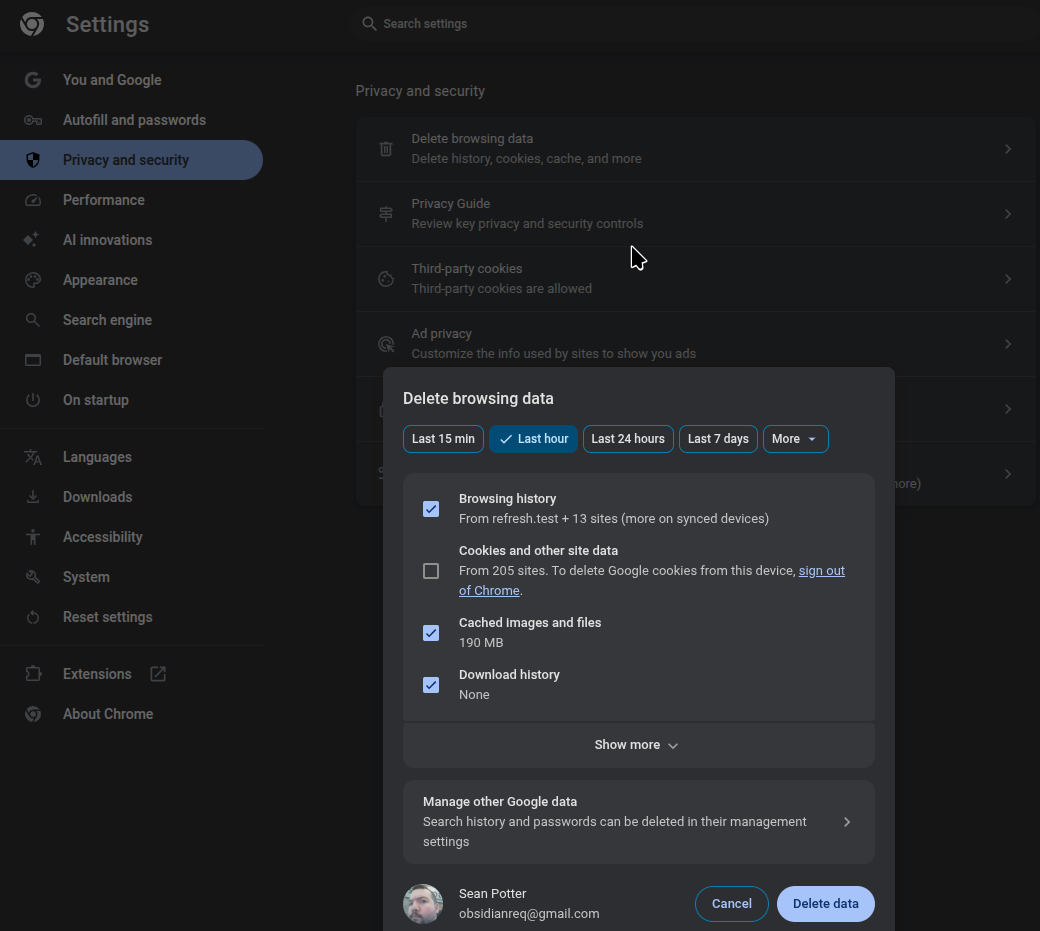
- Tick Cached images and files. Leave Cookies and other site data unticked unless you also want it gone — clearing cookies signs you out of most websites.
- Click Delete data, then reload the page.
Clear the cache for one site only
Useful when you don’t want to lose the cache for every other site you use.
- Open the page and press
F12to open DevTools. - Open the Application panel, select Storage, and click Clear site data.
With DevTools open you can also right-click the reload button and choose Empty Cache and Hard Reload. To stop caching altogether while you work, open the Network panel and tick Disable cache — it applies for as long as DevTools stays open.